# Developer Portal method of setting up

#### Step by Step Summary <a href="#step-by-step-summary" id="step-by-step-summary"></a>

1. Get your Business manager verified and set up a new app in the [Developer portal](https://developers.facebook.com/apps/?business_id=830641582007032)
2. Add WhatsApp as a product in your new app in Developers portal
3. Setup a number in section 5 of “API Setup” in the [developers portal](https://developers.facebook.com/apps/759218118860831/whatsapp-business/wa-dev-console/?business_id=1501389280339074)
4. Add configuration keys - Callback URL and Verify token in the [Configuration section](http://developers.facebook.com/apps/863866785133829/whatsapp-business/wa-dev-quickstart/?business_id=270701782581397)
5. In the “Webhook fields” section directly below, press the “Manage” button and click ALL the tickboxes in “Subscribe” column
6. Add payment method in [Meta Business Manager](https://business.facebook.com/settings/whatsapp-business-accounts/106676589182397?business_id=1501389280339074)
7. Generate System User token\
   i. In [Business Manager](http://business.facebook.com/settings/system-users/61551346053861?business_id=1501389280339074), create an Asset with “Manage App” under Full control

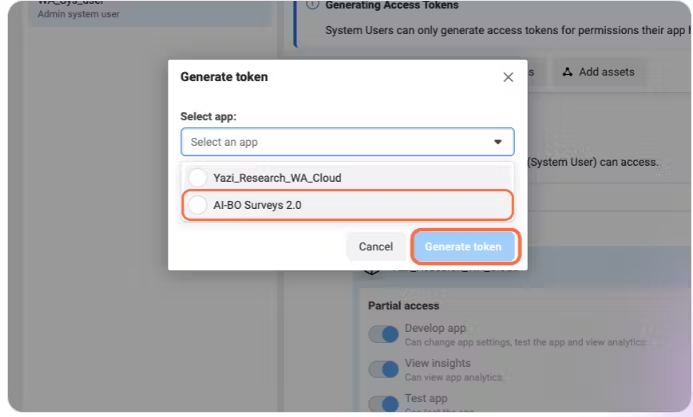
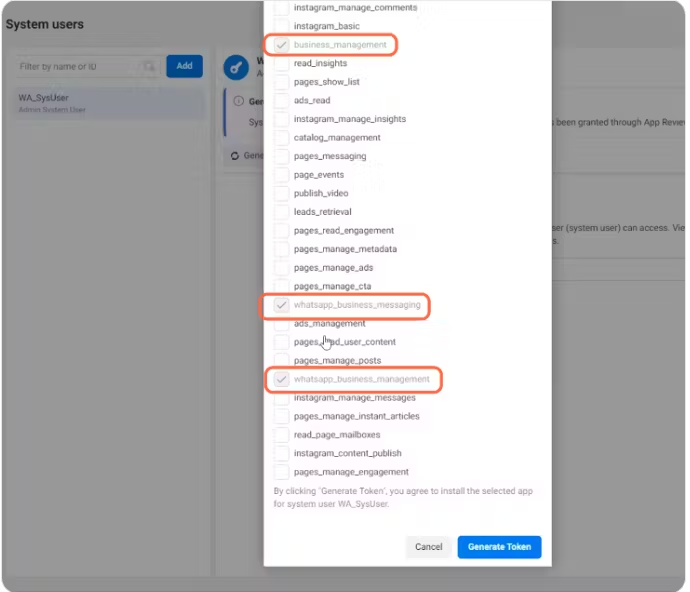
   ii. Generate token - Select “Never” for token expiration and tick the following boxes

   1. Business Management
   2. WhatsApp business messaging
   3. WhatsApp Business management

   iii. Copy token and send it to Yazi
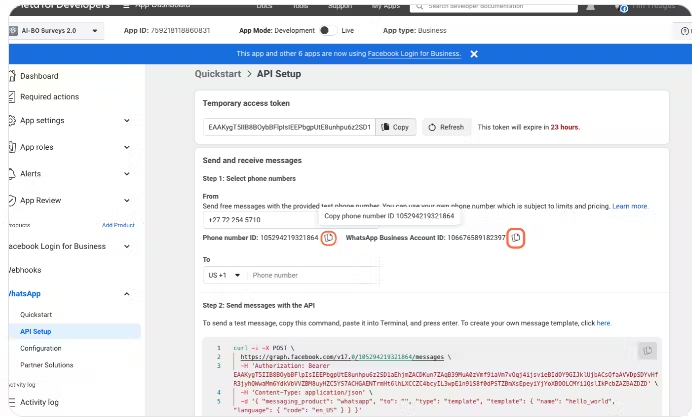
8. Copy the Phone number ID and WhatsApp Business Account ID in [API setup](https://developers.facebook.com/apps/759218118860831/whatsapp-business/wa-dev-console/?business_id=1501389280339074) in the developers Portal and send it to Yazi
9. Toggle Developer mode to be on Live

{% embed url="<https://app.tango.us/app/embed/Navigating-Research-Surveys-and-Configuring-WhatsApp-Manager---Meta-for-Developers-fc2a3edc11a344e4aef9643ca3780e2f>" %}

#### [META FOR DEVELOPERS](https://developers.facebook.com/apps/?business_id=830641582007032) <a href="#meta-for-developers" id="meta-for-developers"></a>

### 1. Setup Developer Portal <a href="#id-1.-setup-developer-portal" id="id-1.-setup-developer-portal"></a>

1.1 Create an app

Go to [Meta for Developers](https://developers.facebook.com/apps/?business_id=830641582007032) and click “Create App”

1. Select “Other” for “What do you want the app to do?”
2. Select “Business” for “Select an app type”
3. Give your app a name, add a contact email and associate it with a Meta Business Manager

<figure><img src="https://358667285-files.gitbook.io/~/files/v0/b/gitbook-x-prod.appspot.com/o/spaces%2FzMRQUXiGQlBwWdg6WEmG%2Fuploads%2F4pMHqD8qphCKZr4g9Y0K%2FMeta%20for%20developers%20Image%20one.avif?alt=media&#x26;token=acab4a9f-1d0b-4102-a911-ecb24d5f0b0e" alt=""><figcaption><p>Step 1 </p></figcaption></figure>

<figure><img src="https://358667285-files.gitbook.io/~/files/v0/b/gitbook-x-prod.appspot.com/o/spaces%2FzMRQUXiGQlBwWdg6WEmG%2Fuploads%2FaI5OfCWGJHC9yodFb6Gn%2FMeta%20fro%20developers%20step%202%20image.avif?alt=media&#x26;token=38dcf3d1-e34d-4e56-aa35-457a4b6e0bde" alt=""><figcaption><p>Step 2 </p></figcaption></figure>

<figure><img src="https://358667285-files.gitbook.io/~/files/v0/b/gitbook-x-prod.appspot.com/o/spaces%2FzMRQUXiGQlBwWdg6WEmG%2Fuploads%2FCWXnM5omMSwfg4C1NuuB%2FStep%203%20meta%20for%20developers.avif?alt=media&#x26;token=63475f3c-bd34-4811-bc32-3a6fe2c1f54f" alt=""><figcaption><p>Step 3 </p></figcaption></figure>

### 1.2 Create WhatsApp product

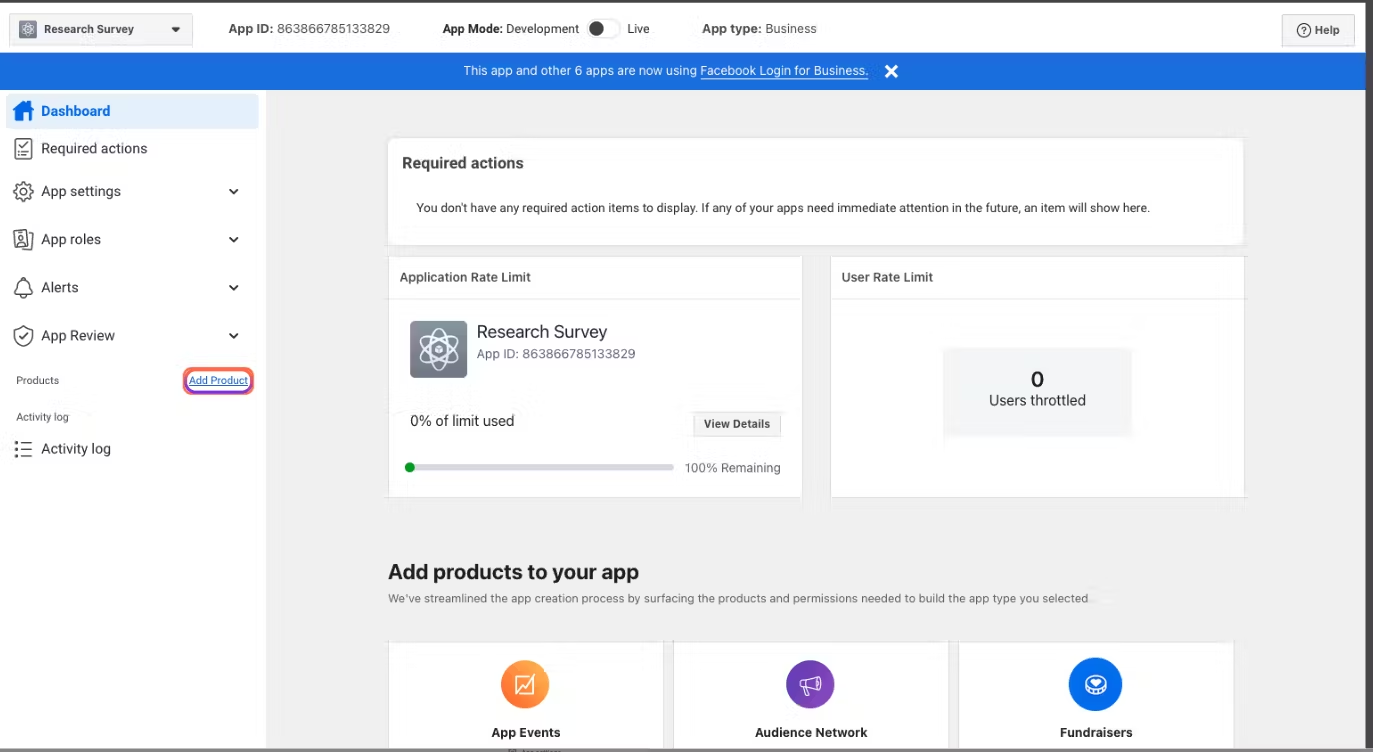
1. Click “Add Product”
2. Scroll down to WhatsApp and click “Set Up”
3. Press “Continue” in Quick start

<figure><img src="https://358667285-files.gitbook.io/~/files/v0/b/gitbook-x-prod.appspot.com/o/spaces%2FzMRQUXiGQlBwWdg6WEmG%2Fuploads%2F5bCFKJzNALpsPsTsGIIc%2F1.2%20firs%20t%20imag%20e.avif?alt=media&#x26;token=297b4545-4d70-4cc1-ab91-3e6d30e90a80" alt=""><figcaption></figcaption></figure>

<figure><img src="https://codahosted.io/docs/lMuD8eJ7Id/blobs/bl-JOTQuw8GF1/922af0894dd27ca079d32c10adb4ce37b92b3b95198629ef93dae8f160cdbc478b25c8edcf6d2647ff746790301a5b79683ebac4622f35f17cd9a9c9a947b920b8a77ae1a8a173525ba3e5b0766b9c5211051c436b6993053742aa07e6260664c190fa66" alt=""><figcaption></figcaption></figure>

## 2. API Setup

### 2.1 Add phone number

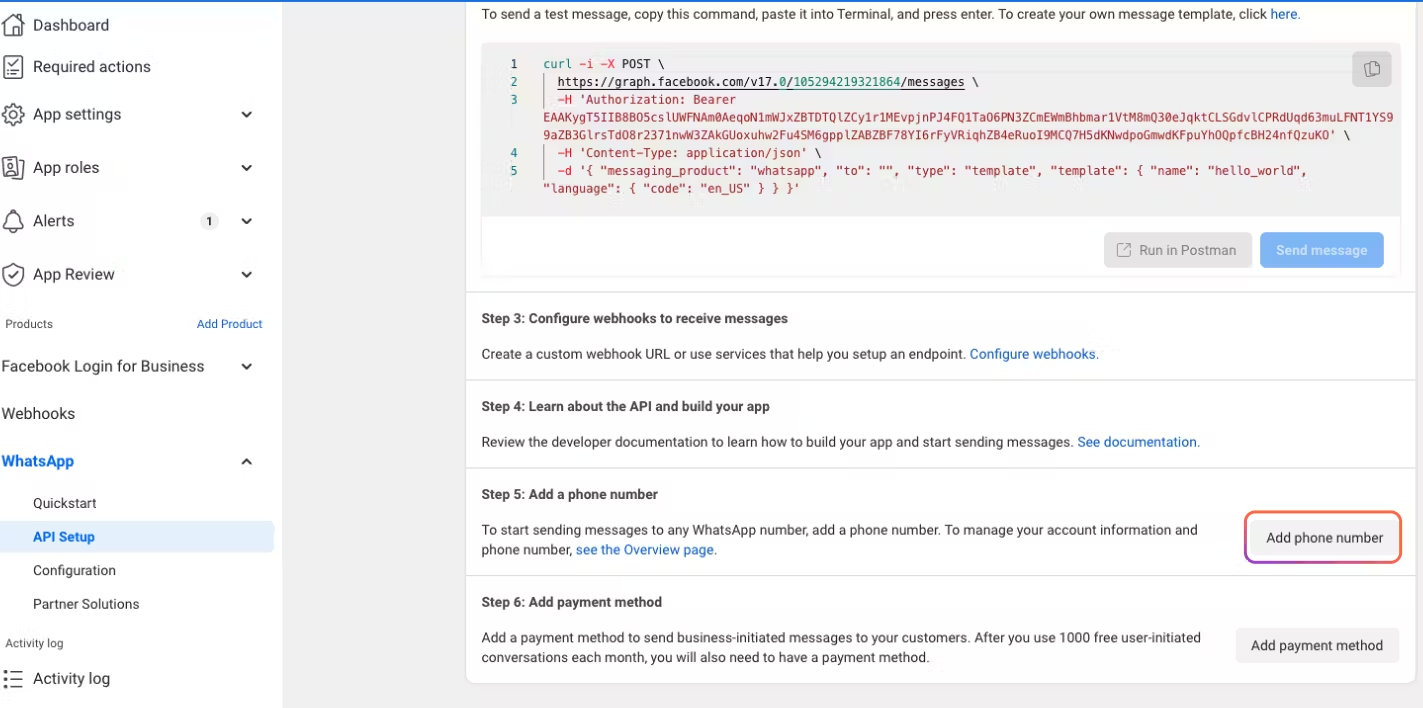
1. Click on “Add phone number” button in “[Step 5: Add a phone number section](https://developers.facebook.com/apps/759218118860831/whatsapp-business/wa-dev-console/?business_id=1501389280339074)”. Fill out your profile name and add the number:\
   a) Add profile display name prescribed by Meta. Make sure it’s associated with your business’s actual name. If it is not associated, Meta is likely to reject it. For Research bots, we typically advise \[business\_name] + Research as your Display Name. See [Display Name Guidelines](https://www.facebook.com/business/help/757569725593362) article for more details.\
   b) Choose a category and business Description\
   c) Add number: Select country code and add a number to receive OTP via SMS or phone call to verify

{% hint style="info" %}

* Make sure you have the number ready to receive SMS or phone call
* After adding your number, you might need to refresh the page if the number isn’t showing up
  {% endhint %}

<figure><img src="https://358667285-files.gitbook.io/~/files/v0/b/gitbook-x-prod.appspot.com/o/spaces%2FzMRQUXiGQlBwWdg6WEmG%2Fuploads%2FZJkiKq8wClUC639DDeHY%2FAPI%201.avif?alt=media&#x26;token=a980a639-9f83-4f2a-84bf-f2956bdbf98e" alt=""><figcaption></figcaption></figure>

<figure><img src="https://358667285-files.gitbook.io/~/files/v0/b/gitbook-x-prod.appspot.com/o/spaces%2FzMRQUXiGQlBwWdg6WEmG%2Fuploads%2Fwq3XBr5FmnBspwl7oQKe%2FAPI%202.avif?alt=media&#x26;token=012b711d-ae54-4884-a742-23e6d7aa5704" alt=""><figcaption></figcaption></figure>

#### 2.2 Setup Webhook <a href="#id-2.2-setup-webhook" id="id-2.2-setup-webhook"></a>

Go to the [Configuration section](http://developers.facebook.com/apps/863866785133829/whatsapp-business/wa-dev-quickstart/?business_id=270701782581397) and press the “Edit” button in the webhook card section

1. Enter the Callback URL and Verify token (both of these keys will be provided to you by Yazi)
2. Press the “Verify and Save” button (it will do a pink test and automatically save)

<figure><img src="https://358667285-files.gitbook.io/~/files/v0/b/gitbook-x-prod.appspot.com/o/spaces%2FzMRQUXiGQlBwWdg6WEmG%2Fuploads%2FchGe5dj0MTENOZZWsgnj%2F2.2%20Image.avif?alt=media&#x26;token=0fcf02be-5ee0-4669-acaf-0ec08963d1ed" alt=""><figcaption></figcaption></figure>

*In the “Webhook fields” section directly below, press the “Manage” button*

* Click ALL TICKBOXES in the Subscribe column. This allows us to track and retrieve the data so make sure to tick every one!

<figure><img src="https://yazi-1.gitbook.io/~gitbook/image?url=https%3A%2F%2Fcodahosted.io%2Fdocs%2FlMuD8eJ7Id%2Fblobs%2Fbl-eUrK2GkzQE%2F9fe268dcbb20eef8a345b434ac2a038f8e3e0797ac5fb6e5565f67bae8dbf729c5a6aa0cef69584415da96ac92ef2b146569a8863fbef7b2c711790c72cc09374f308ad1b15ba85a25b9fb2d0a71ee18f1982bcbbcd348a0a8763e7a18bed8415c8114b9&#x26;width=300&#x26;dpr=4&#x26;quality=100&#x26;sign=9630a183b88d404057120d1393d20789398385c240a65a8973e09628d31b1398" alt=""><figcaption></figcaption></figure>

### [META BUSINESS MANAGER](https://business.facebook.com/settings/whatsapp-business-accounts/106676589182397?business_id=1501389280339074) <a href="#meta-business-manager" id="meta-business-manager"></a>

### 4. System User token <a href="#id-4.-system-user-token" id="id-4.-system-user-token"></a>

You have now entered the identification that WhatsApp needs from our software system. Now, for our system to connect to your number, we need 3 items or identifiers from you. These are:

1. System User token
2. Phone number ID
3. WhatsApp Business Account ID

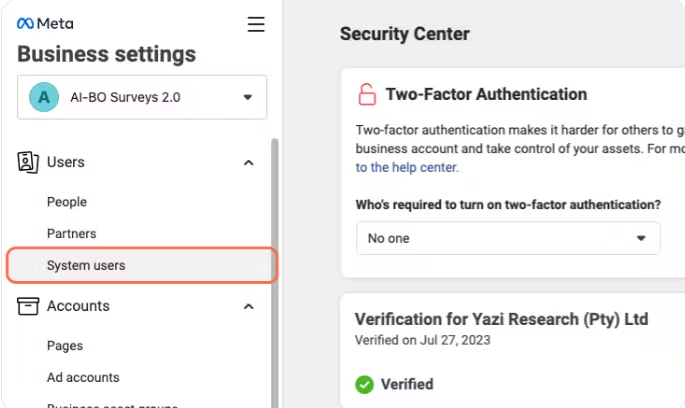
#### 4.1 Add System User if none existed <a href="#id-4.1-add-system-user-if-none-existed" id="id-4.1-add-system-user-if-none-existed"></a>

Head back to [Business Manager](http://business.facebook.com/settings/system-users/61551346053861?business_id=1501389280339074) to generate a system token from someone who is a System user:

<figure><img src="https://358667285-files.gitbook.io/~/files/v0/b/gitbook-x-prod.appspot.com/o/spaces%2FzMRQUXiGQlBwWdg6WEmG%2Fuploads%2FydK2NFiJcGrST5F1VHyP%2F4.1%20Imag%20e.avif?alt=media&#x26;token=85e870a6-788b-4c5c-a057-aa1976d81ac4" alt=""><figcaption></figcaption></figure>

> Go to Users and click on “System Users” (you need to be an Admin user to do this)

**Note:**

{% hint style="info" %}

* If no System user exists, Press the “Add” button → Set system user role to Admin&#x20;
* Difference between the system user and regular user. System user doesn’t require a reset of the token after it expires because the system can be set up as permanent. If the system is compromised then you can revoke
  {% endhint %}

#### 4.2 Add Asset <a href="#id-4.2-add-asset" id="id-4.2-add-asset"></a>

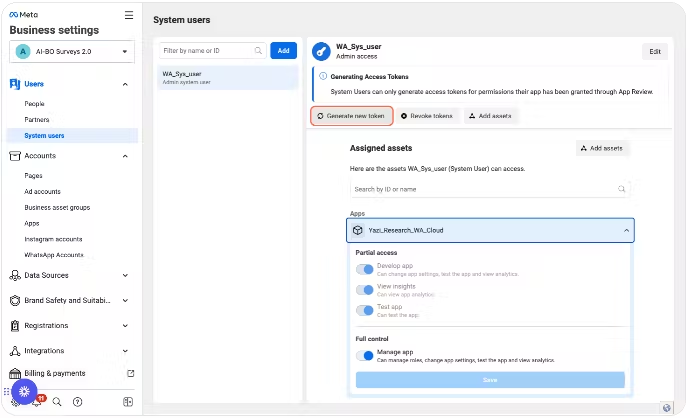
Click “Add Assets” and a Modal will pop up. Navigate the following:

1. Click the “Apps” page
2. Select the app you just created
3. Toggle “Manage App” under Full control to be on
4. Press the “Save changes” button

<figure><img src="https://358667285-files.gitbook.io/~/files/v0/b/gitbook-x-prod.appspot.com/o/spaces%2FzMRQUXiGQlBwWdg6WEmG%2Fuploads%2FJaACXiXCHTpZWchTO9Qx%2FAdd%20asset%20Image%201.avif?alt=media&#x26;token=95cc064c-9a0f-4461-9d2d-367923bccb6b" alt=""><figcaption></figcaption></figure>

<figure><img src="https://358667285-files.gitbook.io/~/files/v0/b/gitbook-x-prod.appspot.com/o/spaces%2FzMRQUXiGQlBwWdg6WEmG%2Fuploads%2F5YMi3TQH08p8pkg2l1ar%2FAdd%20asset%20image%202.avif?alt=media&#x26;token=718eae3a-e7fa-4c11-afaf-edaa652ec6e9" alt=""><figcaption></figcaption></figure>

#### 4.3 Generate Token <a href="#id-4.3-generate-token" id="id-4.3-generate-token"></a>

1. Click “Generate New Token”
2. Select your App
3. Select “Never” for token expiration

Tick the following boxes

* Business Management
* WhatsApp business messaging
* WhatsApp Business management

When you've done this, Click the “Generate Token” button

{% hint style="info" %}
Notes

* This is the identifier that will be sent back to Yazi to configure the system to your personal account.&#x20;
* Once the code is generated, you can send it to Yazi to complete the configuration of your account Selecting Never for Token expiration means you don’t have to keep configuring new tokens
  {% endhint %}

<figure><img src="https://358667285-files.gitbook.io/~/files/v0/b/gitbook-x-prod.appspot.com/o/spaces%2FzMRQUXiGQlBwWdg6WEmG%2Fuploads%2FEFJnswrrLRaHkKYuiM5X%2FGenerate%20token%20image%201.avif?alt=media&#x26;token=1ba87922-19ca-4b1e-aad3-f227039ad3d7" alt=""><figcaption></figcaption></figure>

&#x20;

<figure><img src="https://358667285-files.gitbook.io/~/files/v0/b/gitbook-x-prod.appspot.com/o/spaces%2FzMRQUXiGQlBwWdg6WEmG%2Fuploads%2FMioPdFOVYKrBgFFTRv6B%2FGenerate%20token%20image%202.avif?alt=media&#x26;token=3c75b6f1-7914-4f50-9557-310117128447" alt=""><figcaption></figcaption></figure>

<figure><img src="https://358667285-files.gitbook.io/~/files/v0/b/gitbook-x-prod.appspot.com/o/spaces%2FzMRQUXiGQlBwWdg6WEmG%2Fuploads%2FILj0D0P6jo8iJzwcInCT%2FGenerate%20token%20image%203.avif?alt=media&#x26;token=7a340934-e3ed-4403-9eda-5fe12d732062" alt=""><figcaption></figcaption></figure>

<figure><img src="https://358667285-files.gitbook.io/~/files/v0/b/gitbook-x-prod.appspot.com/o/spaces%2FzMRQUXiGQlBwWdg6WEmG%2Fuploads%2FEt5l8h2g78GUD20zcr8Z%2FGenerate%20token%20image%204.avif?alt=media&#x26;token=dc555054-7a0d-4f99-b386-149ff1265e9b" alt=""><figcaption></figcaption></figure>

### [META FOR DEVELOPERS](https://developers.facebook.com/tools/accesstoken/) <a href="#meta-for-developers-1" id="meta-for-developers-1"></a>

#### 4.4 Access Token via Debugger <a href="#id-4.4-access-token-via-debugger" id="id-4.4-access-token-via-debugger"></a>

To copy or access the information about the token: Go to Access token page in Tools in the Facebook Developers portal <https://developers.facebook.com/tools/accesstoken/>

1. Click “Debug” on the app you just created
2. Copy the Debug code

{% hint style="info" %}
Note:\
Also see all the information about the token
{% endhint %}

<figure><img src="https://358667285-files.gitbook.io/~/files/v0/b/gitbook-x-prod.appspot.com/o/spaces%2FzMRQUXiGQlBwWdg6WEmG%2Fuploads%2FGS5yLFZImlnepTpDeyFl%2FAccess%20token%20via%20debugger%20Image%201.avif?alt=media&#x26;token=f2812691-5bc1-464e-a937-2e0241bc2312" alt=""><figcaption></figcaption></figure>

<figure><img src="https://358667285-files.gitbook.io/~/files/v0/b/gitbook-x-prod.appspot.com/o/spaces%2FzMRQUXiGQlBwWdg6WEmG%2Fuploads%2FXPmRZcT37odu91DlAaX0%2FAccess%20token%20via%20debugger%20Image%202.avif?alt=media&#x26;token=b8cbd63d-413b-4a10-a8e9-85d81f6fb5db" alt=""><figcaption></figcaption></figure>

### 5. Copy Phone number ID and WhatsApp Business Account ID <a href="#id-5.-copy-phone-number-id-and-whatsapp-business-account-id" id="id-5.-copy-phone-number-id-and-whatsapp-business-account-id"></a>

Go back to [API setup](https://developers.facebook.com/apps/759218118860831/whatsapp-business/wa-dev-console/?business_id=1501389280339074) in the developers PortalCopy the following:

1. Phone number ID
2. WhatsApp Business Account ID
3. The actual WhatsApp number

***Send these back to Yazi along with the System token***

<figure><img src="https://358667285-files.gitbook.io/~/files/v0/b/gitbook-x-prod.appspot.com/o/spaces%2FzMRQUXiGQlBwWdg6WEmG%2Fuploads%2Fo2vju64DNQYh4oRlSGkJ%2FCopy%20Phone%20NUMBER%20ID.avif?alt=media&#x26;token=90cf24a2-13ee-42a9-817e-53bf11d72b3e" alt=""><figcaption></figcaption></figure>

### 6. Toggle App Mode onto Live <a href="#id-6.-toggle-app-mode-onto-live" id="id-6.-toggle-app-mode-onto-live"></a>

Toggle the app to “Live”. As this is approved, you will normally be upgraded to be able to send 1,000 Template messages per day (1,000 outbound notification messages per 24 hours)&#x20;

{% hint style="info" %}
Note: You may need to add your Privacy policy in [Basic Settings](https://developers.facebook.com/apps/759218118860831/settings/basic/?business_id=1501389280339074) to be able to do this.
{% endhint %}

<figure><img src="https://358667285-files.gitbook.io/~/files/v0/b/gitbook-x-prod.appspot.com/o/spaces%2FzMRQUXiGQlBwWdg6WEmG%2Fuploads%2FopSbGSNY6EA7LL4aCXmC%2FToggle%201.avif?alt=media&#x26;token=7ccbb18f-391b-4036-b99c-a886c14b2c05" alt=""><figcaption></figcaption></figure>

<figure><img src="https://358667285-files.gitbook.io/~/files/v0/b/gitbook-x-prod.appspot.com/o/spaces%2FzMRQUXiGQlBwWdg6WEmG%2Fuploads%2FXkzvImYDA2cgKZ7Y01ox%2FToggle%20Imge%202.avif?alt=media&#x26;token=672121f9-ef44-4e16-90d0-851f66f33ac8" alt=""><figcaption></figcaption></figure>

{% hint style="info" %}
Might take a day to populate.
{% endhint %}

<figure><img src="https://358667285-files.gitbook.io/~/files/v0/b/gitbook-x-prod.appspot.com/o/spaces%2FzMRQUXiGQlBwWdg6WEmG%2Fuploads%2F4otTxXdaTFYf93SVsxdD%2FToggle%20imag%20e3.avif?alt=media&#x26;token=a9fe2125-9674-4a95-852c-f6ea55c303dd" alt=""><figcaption></figcaption></figure>

### **Additional profile check**

1. Check the status of your number\
   Should take 1-2 business days to be approved
2. Profile\
   Add description\
   Picture